INSIGHTS
Instructions for Converting QBD Files
If you are still on a legacy version of QuickBooks Desktop (pre-2020) and need to share information with your tax professionals, below are instructions to help you troubleshoot some common issues that arise including:
How to create a Portable Copy of your Quickbooks Company File
1. Login to your QB Company File
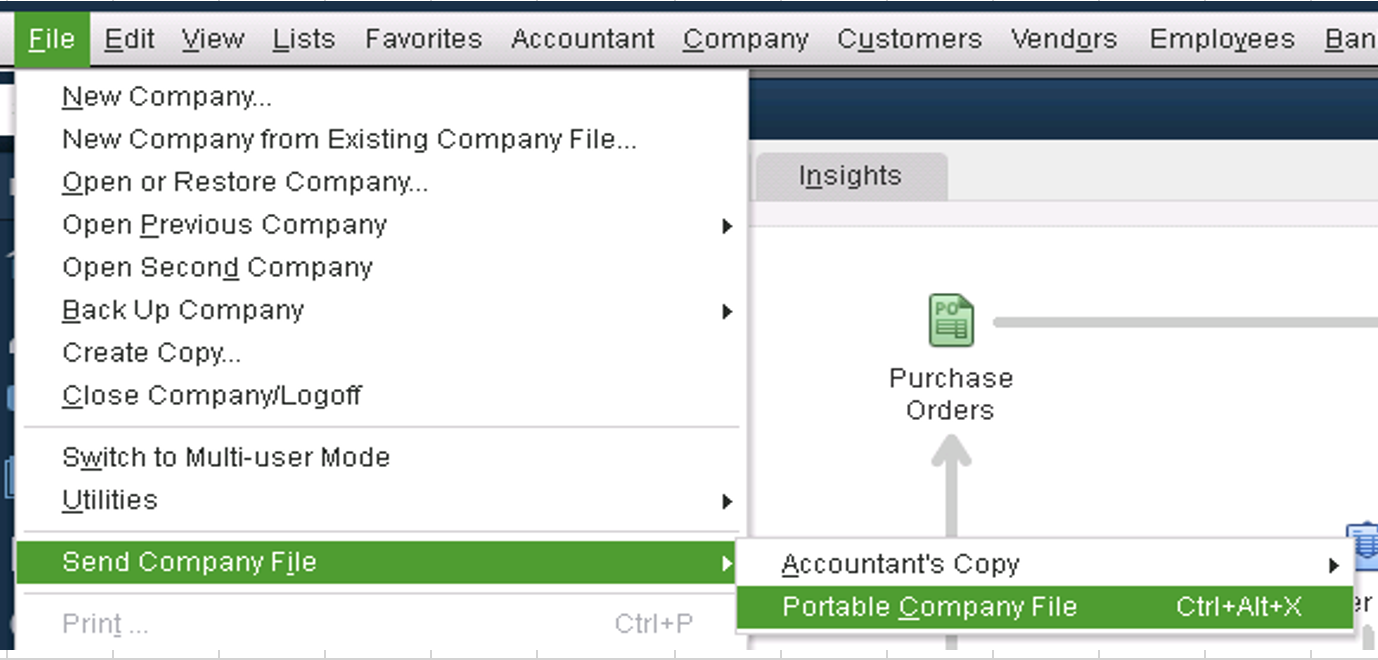
2. To create a portable backup: File > Send Company File > Portable Company File
3. Name the File and Save to Documents folder (or whichever Folder you typically save your backups)
***Please do not use any special characters in the QB file name
4. Send Portable copy to your contact at Larson Gross
***Please be sure to confirm login credentials
How to convert a QBD Mac File to a Windows Backup
1. Login to your QB Company File
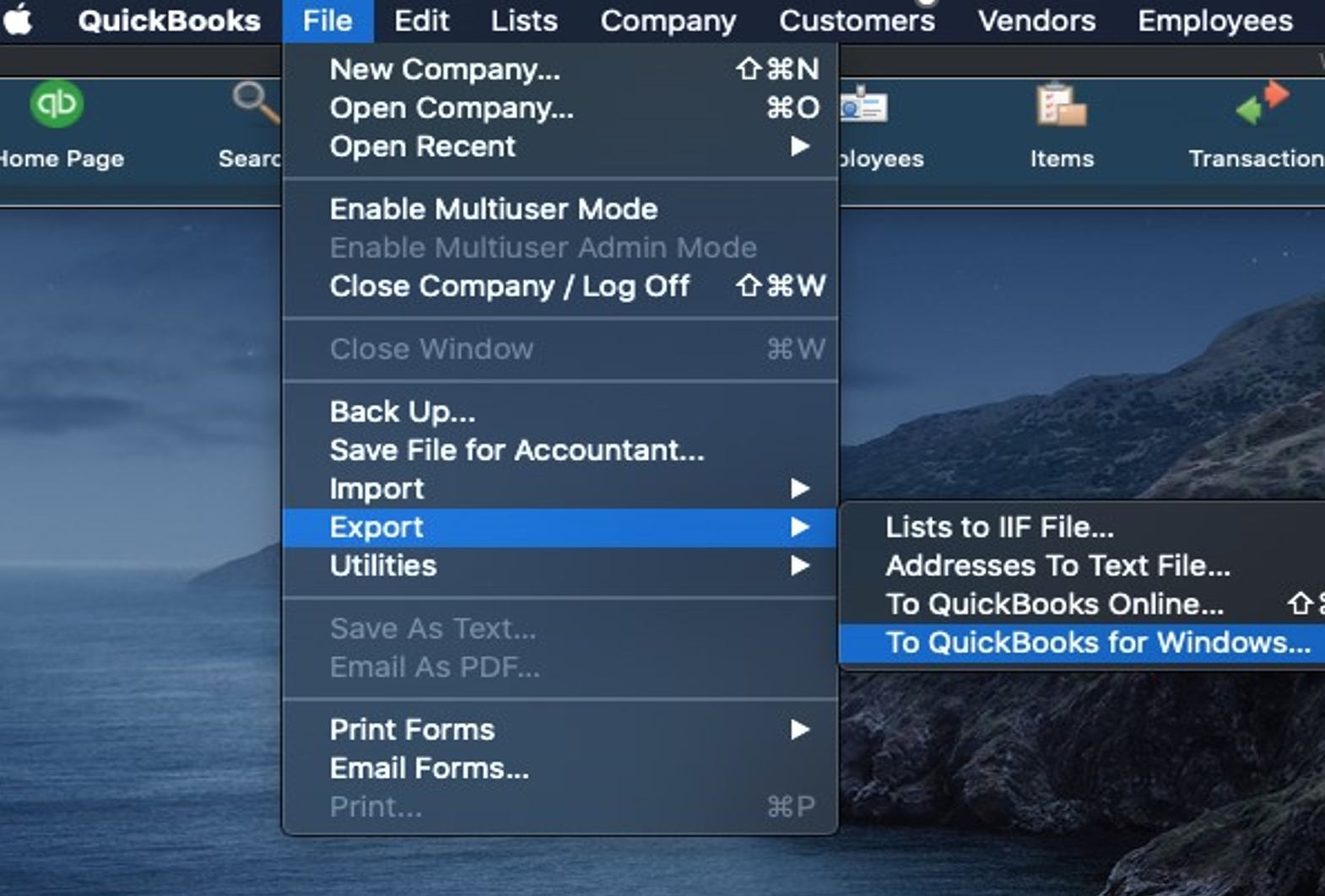
2. To start the conversion process, go to: File > Export > To Quickbooks for Windows
*** If you get prompted to verify before you backup, select verify
3. Name the File and Save to Documents folder (or whichever Folder you typically save your backups prior to sending)
***Please do not use any special characters in the QB file name
4. When prompted to enter a password: leave it blank
***If QB will not allow you to move forward without creating a password, please create one and carefully document for your contact at Larson Gross to ensure access
5. Select “ok” in the confirmation window
6. Send backup copy to Larson Gross
*** Please be sure to include password if applicable
Note, if at any point you run into an error message or a step not listed above, please document (screenshot/snip if possible) and send it to Larson Gross to review and follow up with instructions.